Standing Up a Hermes Agent (and Minting the Google Token It Needs)
A prerequisite guide to installing Hermes, creating an isolated agent profile, splitting persona from project instructions, and minting the Google OAuth refresh token that calendar access quietly depends on.
This is a prerequisite guide. The self-hosted Discord project-management bot I built for my Dallas AI team runs on Hermes, an open agent framework. Before any of the Discord or tool wiring matters, you need Hermes installed, a profile to hold the agent, and, if you want calendar access, a Google OAuth refresh token. That last part is the fiddly bit, so it gets the most space here.
Step 1: Install Hermes
Hermes is a Python package. Install it into its own environment so it does not collide with anything else:
pip install hermes-agentWhen you containerize this later, you install it with optional extras for the features you want, like chat platforms and tool support. That detail matters enough that it has its own section in the main build guide, where leaving one extra out caused a silent failure. For a local install to get started, the base package is enough.
Confirm it runs:
hermes --versionStep 2: Create an isolated profile
A profile is a self-contained agent: its own identity, memory, config, and credentials. Keeping each agent in its own profile means one bot's setup never bleeds into another's.
hermes profile create dallas-ai --cloneEverything specific to this agent now lives in that profile's directory. When you containerize it, you mount that directory in so it survives rebuilds.
Step 3: Split persona from project instructions
Hermes loads two different files, and using both is the difference between an agent that stays coherent and one that drifts:
- The persona file is who the agent is. Voice, tone, defaults. "You are a project manager. Be specific. Flag blockers proactively." This barely changes.
- The project context file is what this project needs. Database IDs, the team roster, tool conventions, the order to check sources in. This changes often.
Put identity in one, operational detail in the other. The persona stays clean while the volatile project specifics live somewhere you can edit without touching the agent's character. I go deeper on this split, and on why a fast model needs blunt rules, in the main guide.
Step 4: Mint the Google OAuth refresh token
If your agent touches Google Calendar, this is the step that quietly underpins it. A config that references a GOOGLE_REFRESH_TOKEN is useless until you actually have one, and getting one is a short dance with Google's consent screen.
The shape of it:
- Create OAuth credentials. In the Google Cloud Console, create a project, enable the Google Calendar API, and create an OAuth client ID of type "Desktop app." You get a client ID and a client secret.
- Request the right scopes. For calendar work you want
calendarandcalendar.events. Request only what you need. If the agent does not send mail, do not ask for a mail scope. - Run the consent flow once. A small auth script opens an authorization URL, you approve it in the browser as the Google account whose calendar you want, and it hands back a code you paste in. That exchange returns a long-lived refresh token.
npm run auth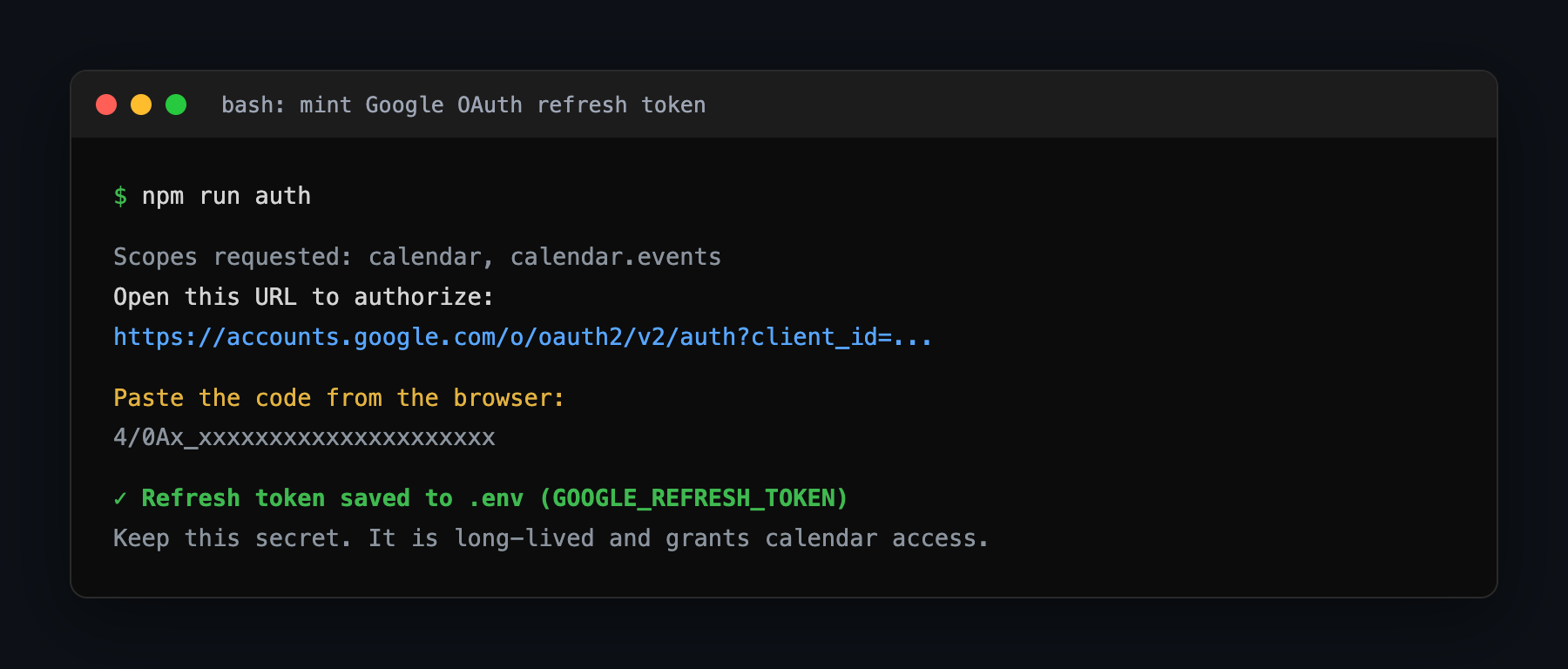
A few things worth knowing, because they trip people up:
- The refresh token is the durable credential. Access tokens expire in an hour; the refresh token is what your agent uses to mint fresh ones forever. Guard it like a password.
- The account you authorize as is the account the agent acts as. If you log into the consent screen with the wrong Google account, your events land on the wrong calendar and you will swear the agent is broken. It is not; you authorized the wrong identity.
- Scopes are sticky. If you later need a new capability, say reading files from Drive, you have to re-run the consent flow to mint a token with the broader scope. The old token does not gain powers retroactively.
Drop the three values into your environment file:
# .env, never committed
GOOGLE_CLIENT_ID=...
GOOGLE_CLIENT_SECRET=...
GOOGLE_REFRESH_TOKEN=...
Step 5: Run it
With the profile created and credentials in place, you can start the agent. Locally that is an interactive session; in production it is a long-running gateway:
hermes -p dallas-ai gateway runAt this point you have a running Hermes agent with Google access. What it does not have yet is a chat surface to listen on or tools to act through.
The chat surface is the Discord bot. The tools, and the way everything connects into a working project-management bot, are the main build.