How to Create a Discord Bot for an AI Agent (Token, Intents, and the Part Everyone Skips)
A focused walkthrough of creating a Discord bot for an AI agent: registering the app, getting the token, enabling the two privileged intents that fail silently, and inviting it with the right permissions.

This is a prerequisite guide. When I built a self-hosted AI project-management bot for my Dallas AI team, the first thing it needed was a Discord identity to log in as. That part is quick, except for one step that fails silently and will have you debugging your agent code when the actual problem is a toggle you never flipped.
Here is the whole thing, with that trap called out.
Step 1: Register the application
Go to the Discord Developer Portal and click New Application. Give it a name. This is the application, which is the container for your bot, not the bot itself yet.
While you are here, the Application ID under General Information is worth noting. You will use it later to build the invite link.
Step 2: Add the bot and copy the token
Open the Bot tab and the application gets its bot user automatically. Click Reset Token, then copy it.
Treat this token like a password, because it is one. Anyone with it can act as your bot. It goes straight into an environment variable, never into your code or a committed file:
# in your .env, never in the repo
DISCORD_BOT_TOKEN=your-token-here
If you ever paste it somewhere by accident, reset it from this same screen. The old one dies instantly.
Step 3: Enable the privileged intents (the part everyone skips)
This is the step that cost me real time, so I am putting it before the fun part. On the same Bot tab, scroll to Privileged Gateway Intents.
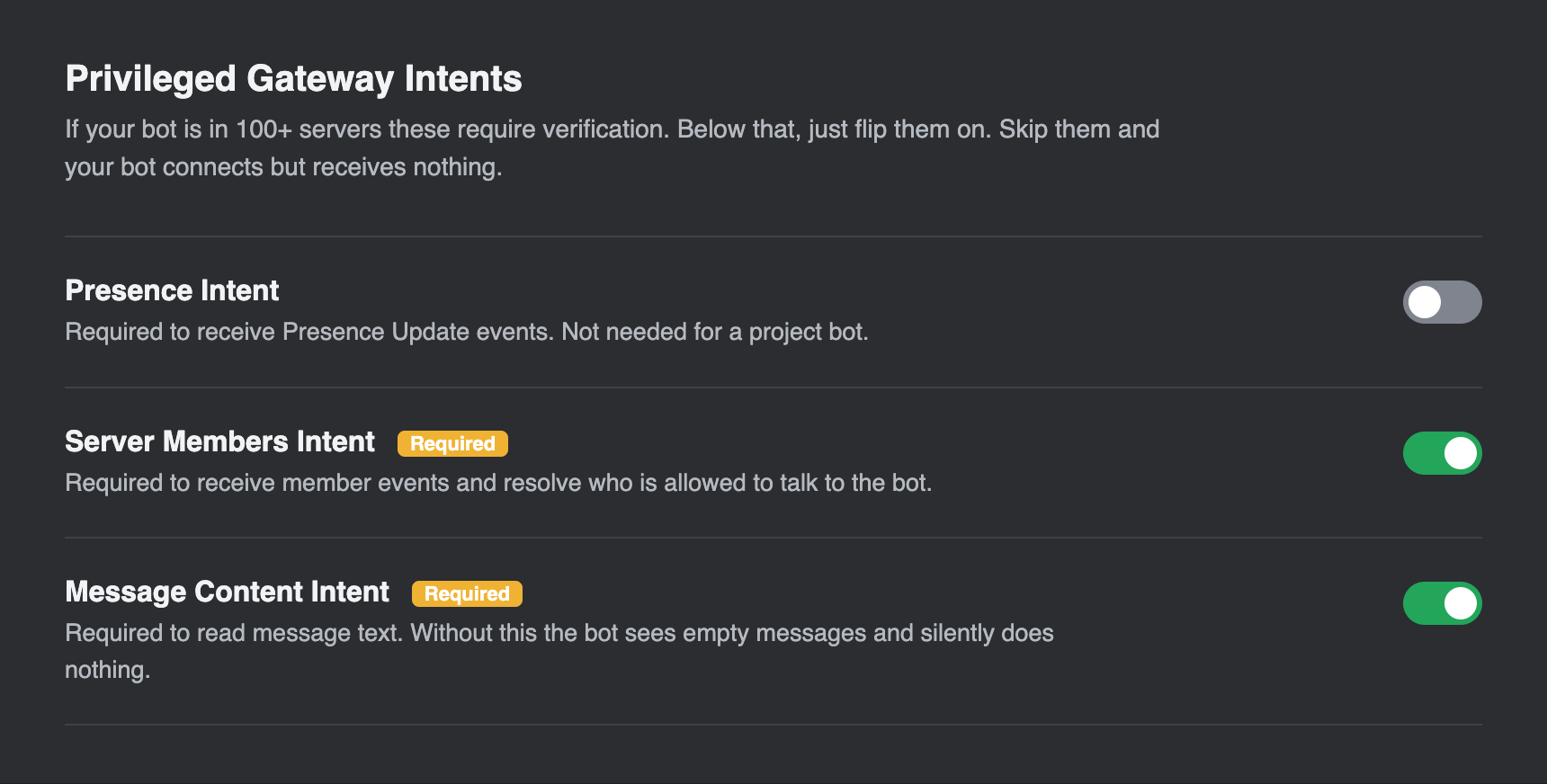
For an AI agent that reads and responds to chat, turn on two of them:
- Server Members Intent. Lets the bot see who is in the server, which you need to resolve which people are allowed to talk to it.
- Message Content Intent. Lets the bot actually read the text of messages.
Here is the trap: if you leave Message Content off, your bot still connects, still appears online, still looks completely healthy. It just receives empty messages and does nothing. You will stare at your agent code convinced something is broken in your logic. The problem is this toggle.
Leave Presence Intent off. A project bot does not need to track who is online.
(If your bot ever joins 100 or more servers, these intents require Discord's verification. For a single team server you are well under that and can just flip them on.)
Step 4: Invite the bot with the right permissions
A registered bot is not in any server yet. You invite it with an OAuth2 URL that encodes exactly what it is allowed to do.
In the OAuth2 tab, use the URL Generator. Under Scopes, check bot. A permissions list appears below. Grant only what the job needs. For a chat agent that reads, replies, and posts in threads, that is roughly:
- View Channels
- Send Messages
- Send Messages in Threads
- Read Message History
- Create Public Threads
Resist the urge to check Administrator. A bot listening to a semi-public channel should hold the smallest set of permissions that does the job. Every extra permission is something an attacker can try to use if the token ever leaks.
Copy the generated URL, open it in a browser, pick your server, and authorize. The bot appears in your member list, offline until you actually run it.
Step 5: Decide where it is allowed to listen
The invite controls what the bot can do server-wide. You still want to control where it pays attention. Two layers handle this:
- Discord channel permissions. Use channel-level overrides so the bot can only see the channels you intend. If it has no view permission on a channel, it never receives anything from it.
- Your agent's own allowlist. In the agent's config, list the exact channel IDs it should respond in and the user IDs allowed to command it. Belt and suspenders: even if a permission is misconfigured, the agent ignores anything outside its allowlist.
For my project bot I scoped it to a handful of channels and the nine teammates' IDs. Everything else, it ignores.
That is the Discord half
You now have a bot identity: a token, the right intents, and a presence in your server scoped to where it should be. It will sit there offline until something logs in as it.
That something is the agent runtime. The next prerequisite is standing up the Hermes agent and its Google access, and then the full build that ties it all together.