How I Connected a Cooper & Hunter Mini-Split to Apple Home (Without the Official App)
How to identify Cooper & Hunter mini-splits as Midea OEM, extract credentials from the macOS companion app, and connect them to Apple Home via homebridge-midea-platform.
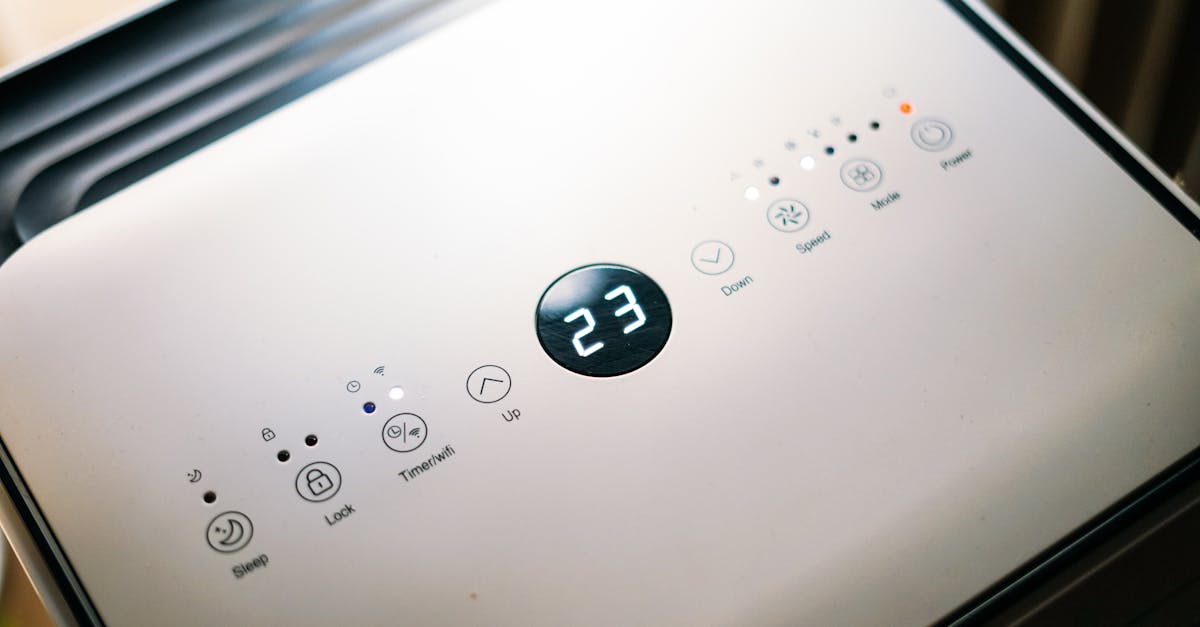
The Cooper & Hunter Remote app does not support Apple HomeKit. There is no official bridge. The manufacturer's support page doesn't mention Homebridge.
I spent an afternoon assuming it was a Gree device. Every forum said so. Every plugin was built on that assumption. None of them worked.
Here's what actually worked, including the parts nobody documented.
The Wrong Path First
Most Cooper & Hunter homeowners who search for HomeKit integration land on the same answer: use homebridge-gree-ac or a Gree-based plugin. The reasoning is plausible: C&H uses similar app UI patterns and the same generic EWPE Smart infrastructure other Gree brands use.
I installed three Gree plugins. None of them discovered the device.
The real answer was in a detail I almost missed.
Cooper & Hunter Is Midea OEM, Not Gree
Open the C&H Remote iOS app on a Mac. Right-click in Applications, choose "Get Info," look at the bundle identifier.
com.midea.oem.chremote
That prefix, midea.oem, tells you everything. Cooper & Hunter is manufactured by Midea and runs the Midea LAN protocol, not the Gree/EWPE Smart protocol. Every Gree plugin you install will silently fail to discover the device.
The correct plugin is homebridge-midea-platform.
Getting the Credentials
The Midea V3 LAN protocol requires a device-specific token and key from Midea's cloud. To get them you need your Midea cloud account credentials: the email and password used with the C&H Remote app.
Here's where it gets complicated: the account visible in the app's SQLite database at ~/Library/Containers/<uuid>/Data/Documents/midea.db was wrong. That's a secondary user record, not the login account. The actual login account is stored in a binary plist inside the app's sandboxed container.
Finding the correct account:
ls ~/Library/Containers/ | grep -i mideaInside that container, at Library/Preferences/MSUserDefault.plist, there's a key called kShouldLoginUserInfo. It's stored as an NSKeyedArchiver binary blob. To decode it:
import subprocess, plistlib

subprocess.run(['defaults', 'export',
    '/Users/yourusername/Library/Containers/XXXXXXXX-XXXX-XXXX-XXXX-XXXXXXXXXXXX/Data/Library/Preferences/MSUserDefault',
    '/tmp/msuser.plist'], capture_output=True)

with open('/tmp/msuser.plist', 'rb') as f:
    data = plistlib.load(f)

raw = data.get('kShouldLoginUserInfo')
inner = plistlib.loads(raw)

for i, obj in enumerate(inner.get('$objects', [])):
    if isinstance(obj, str) and len(obj) > 5:
        print(i, obj)
Look for loginAccount, userPassword, and serverHost. Critical: US accounts use mapp-us.appsmb.com, not mapp.appsmb.com. The wrong server silently rejects authentication.
Getting the Token and Key
Get your device ID from the SQLite device table (deviceId column). Then:
// get-midea-token.mjs
import CloudFactory from '/path/to/node_modules/homebridge-midea-platform/dist/core/MideaCloud.js';
import { Endianness } from '/path/to/node_modules/homebridge-midea-platform/dist/core/MideaConstants.js';

const DEVICE_ID = 123456789012345; // your device ID from the SQLite device table (JS number, not BigInt)
const cloud = CloudFactory.createCloud('your@email.com', 'yourpassword', 'NetHome Plus');
cloud.API_URL = 'https://mapp-us.appsmb.com'; // US accounts only

await cloud.login();
const [token, key] = await cloud.getTokenKey(DEVICE_ID, Endianness.Big);
console.log('token:', token);
console.log('key:', key);
Two things that must be right:
Use Endianness.Big. Little-endian connects but returns a short response. Homebridge throws "Data length mismatch" and the device never responds.
Write the token immediately. getTokenKey generates a new pair on every call and invalidates the previous one. Run it once, paste the output into config.json, restart Homebridge. If you call it again before restarting, the pair you just wrote is already dead.
Installing the Plugin
Homebridge on macOS runs under a specific Node.js version. Running plain npm install -g homebridge-midea-platform installs to whichever NVM version is active in your shell, probably not the one Homebridge uses.
Check your Homebridge Node version (look at /Library/LaunchDaemons/com.homebridge.server.plist), then install explicitly:
/Users/yourusername/.nvm/versions/node/v20.19.5/bin/npm install -g homebridge-midea-platformVerify: ls /Users/yourusername/.nvm/versions/node/v20.19.5/lib/node_modules/ | grep midea
The Configuration
Add to ~/.homebridge/config.json under platforms:
{
  "name": "MideaPlatform",
  "platform": "midea-platform",
  "devices": [{
    "type": "Air Conditioner",
    "name": "Olivia",
    "id": 123456789012345,
    "advanced_options": {
      "ip": "192.168.1.x",
      "token": "YOUR_BIG_ENDIAN_TOKEN",
      "key": "YOUR_BIG_ENDIAN_KEY"
    },
    "AC_options": {
      "serviceType": "Thermostat",
      "fahrenheit": true,
      "heatingCapable": true,
      "dryModeSwitch": true,
      "fanOnlyModeSwitch": true,
      "fanAccessory": true,
      "fanAutoSwitch": true
    }
  }]
}
AC_options notes worth knowing:
serviceType: "Thermostat" gives you a single temperature target in all modes. The default HeaterCooler shows a "keep between" range slider in Auto mode.
fahrenheit: true controls the physical display panel on the unit itself, not Apple Home's display. Apple Home follows iPhone Settings → General → Language & Region → Temperature Unit.
Dry mode and Fan Only don't exist as native HomeKit modes. Enabling dryModeSwitch, fanOnlyModeSwitch, fanAccessory, and fanAutoSwitch exposes them as separate switch and fan accessories in Apple Home. Standard behavior across all AC plugins.
Dead Ends to Skip
| What I tried | Why it failed |
|---|---|
| homebridge-gree-ac | C&H is Midea OEM, Gree protocol never discovers device |
| homebridge-ch-gree-ac-eve-platform | Same |
| Login with SQLite user table account | Wrong account; real credentials are in the plist |
| mapp.appsmb.com (standard Midea server) | US accounts require mapp-us.appsmb.com |
| Little-endian token | "Data length mismatch"; Big-endian required |
| npm install -g (default NVM version) | Plugin lands in wrong Node prefix, silently ignored |
The Result
After restarting Homebridge, "Olivia" appeared in Apple Home as a thermostat. Cool, Heat, and Auto work. Dry and Fan appear as separate accessories. Temperature target is a single value, no range.
The whole setup runs on the local network. Midea's cloud was needed exactly once to fetch the token and key.
If you're stuck, ~/.homebridge/homebridge.log is where to look. The Midea plugin logs connection attempts with enough detail to distinguish wrong protocol, auth failure, and token staleness.